Bitratensteuerung: Grundlagen
Um den Unterschied zwischen CRF, CBR und VBR zu verstehen, müssen wir zunächst über die Bitrate sprechen.
Die Bitrate ist die pro Zeiteinheit erzeugte Datenmenge eines Videos, üblicherweise gemessen in kbps (Kilobit pro Sekunde) oder Mbps (Megabit pro Sekunde). Sie bestimmt direkt die Schärfe, die Flüssigkeit und die endgültige Dateigröße eines Videos. Bei gleicher Auflösung, Bildrate und Codec bewahrt eine höhere Bitrate mehr Details, erzeugt aber eine größere Datei, während eine niedrigere Bitrate die Datei verkleinert, allerdings um den Preis von Unschärfe, Farbbändern und Blockartefakten.
Warum also braucht man überhaupt eine Bitratensteuerung? Der Grund ist, dass die Komplexität der Videobilder ständig schwankt. Statische Hintergründe und einfarbige Flächen können mit sehr wenig Daten verlustfrei rekonstruiert werden, während schnelle Bewegungen, reiche Texturen und abrupte Änderungen weit mehr Bits benötigen, um scharf zu bleiben. Wenn Sie eine konstante Bitrate für das gesamte Video erzwingen, verschwenden einfache Szenen Speicherplatz, und komplexe Szenen verhungern nach Bits und verschlechtern sich sichtbar.
Das Kernziel der Bitratensteuerung ist es, bei einem festen Speicher- oder Bandbreitenbudget Bits intelligent auf jedes Bild zu verteilen und die beste Balance zwischen Qualität und Größe zu finden. Die drei Modi — CRF, CBR und VBR — sind im Wesentlichen drei unterschiedliche Verteilungsstrategien.
Die drei Modi der Bitratensteuerung erklärt
CRF (Constant Rate Factor)
Das Leitprinzip von CRF ist konstante Qualität. Der Encoder verteilt die Bits dynamisch entsprechend der Komplexität jedes Bildes: Er gibt einfache Szenen weniger Bits und komplexen Szenen mehr Bits und hält so die wahrgenommene Qualität im gesamten Video konsistent. Ob das Bild nun eine stillstehende Landschaft oder eine actionreiche Sequenz ist, der Betrachter erlebt ungefähr die gleiche visuelle Qualität.
CRF wird durch eine Ganzzahl zwischen 0 und 51 gesteuert (für die Encoder x264 und x265). Ein niedrigerer Wert bedeutet höhere Qualität und eine größere Datei; ein höherer Wert bedeutet niedrigere Qualität und eine kleinere Datei. Ein Wert von 0 erzeugt verlustfreie Kodierung, 51 ist die niedrigste Qualität und 23 ist typischerweise der Standard-Referenzpunkt für visuell verlustfrei.
Der größte Vorteil von CRF ist Einfachheit gepaart mit stabiler Qualität. Sie müssen im Voraus keine Zielbitrate festlegen, da der Encoder die Bits automatisch entsprechend der Szenenkomplexität verteilt. Aus diesem Grund ist CRF der bevorzugte Modus für die meisten Nicht-Echtzeit-Aufgaben wie Offline-Komprimierung, Dateispeicherung und Web-Veröffentlichung.
CBR (Constant Bitrate)
CBR hält die Bitrate für die gesamte Dauer konstant. Egal wie komplex oder einfach eine Szene ist, der Encoder gibt dieselbe Datenmenge pro Sekunde aus. Das bedeutet, dass in einfachen Szenen die zugewiesenen Bits redundant oder sogar verschwendet sind, während in komplexen Szenen die Bits unzureichend sein können, was zu sichtbaren Artefakten führt.
Die Stärke von CBR liegt in seiner Vorhersagbarkeit und Pufferfreundlichkeit. Diese Eigenschaften machen ihn besonders geeignet für Live-Streaming und Echtzeit-Videoübertragung, wo Bandbreitenstabilität kritisch ist. In diesen Szenarien ist die Netzwerkbandbreite oft fest, und große Bitratenschwankungen können den Puffer überlaufen lassen oder das Netzwerk überlasten, was zu Ruckeln führt. CBR opfert etwas Qualität zugunsten von Übertragungsstabilität.
VBR (Variable Bitrate)
VBR erlaubt es der Bitrate, innerhalb eines festgelegten Bereichs zu schwanken. Der Encoder gewichtet Szenenkomplexität und eine Zielqualität und passt die Bitrate zwischen einem konfigurierten Minimum und Maximum an. VBR erfordert typischerweise das Festlegen einer Zielbitrate (oder Zielqualität) zusammen mit oberen und unteren Grenzen, was ihn flexibler als CBR macht, während er eine Bitratenbeschränkung hinzufügt, die CRF fehlt.
VBR ist in Szenarien verbreitet, die die Gesamtdateigröße kontrollieren müssen, während die Qualität erhalten bleibt, etwa bei der Segment-Kodierung für Streaming. Es ist erwähnenswert, dass der x264-Encoder auch einen 2-Pass-VBR-Modus bietet: Der erste Durchlauf scannt das gesamte Video, um die Komplexitätsverteilung zu analysieren, und der zweite Durchlauf teilt die Bits basierend auf dieser Analyse präzise zu. Dieser Modus kontrolliert die Zielgröße genau und optimiert die Bitverteilung, dauert aber etwa doppelt so lange wie eine Single-Pass-Kodierung, was ihn ideal für Offline-Aufgaben mit strengen Größenanforderungen macht.
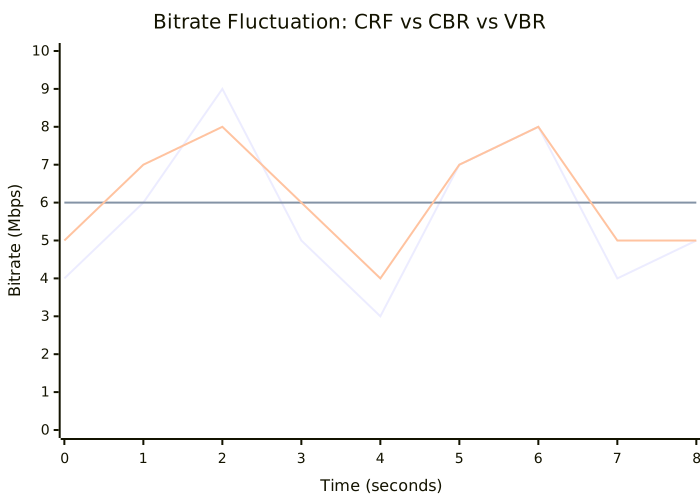
Vergleich der Bitratenschwankungen der drei Modi
Das folgende Diagramm visualisiert das Verhalten der drei Modi beim selben Video. CBR ist eine flache horizontale Linie, während CRF und VBR beide mit der Szenenkomplexität steigen und fallen. CRF schwankt freier, während VBR durch seinen konfigurierten Boden und Deckel begrenzt ist.
Wie der CRF-Wert Qualität und Größe beeinflusst
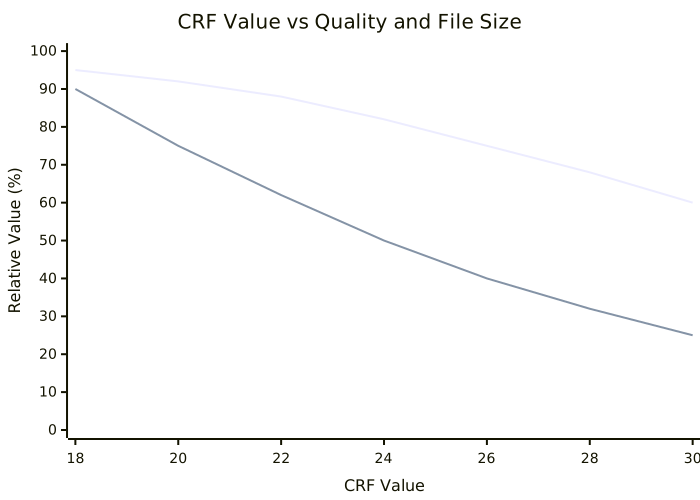
Die Wahl des richtigen CRF-Werts ist der wichtigste Schritt bei der Verwendung des CRF-Modus. Das folgende Diagramm zeigt, wie sich Qualität und Dateigröße ändern, wenn der CRF-Wert von 18 auf 30 geht. Ein niedrigerer CRF bedeutet höhere Qualität und eine größere Datei, während ein höherer CRF eine kleinere Datei auf Kosten der Qualität bedeutet.
FFmpeg-Befehlsbeispiele: drei gängige Szenarien
Hier sind drei typische Komprimierungsszenarien, von denen jedes eine unterschiedliche Balance zwischen Qualität und Größe anspricht.
Szenario 1: E-Mail (H.264 + 720p + CRF 28)
E-Mail-Anhänge haben normalerweise Größenbeschränkungen, daher muss das Video aggressiv komprimiert werden. 720p-Auflösung mit CRF 28 hält die Datei klein und bleibt dabei anschaubar.
ffmpeg -i input.mp4 \
  -c:v libx264 -preset medium -crf 28 \
  -vf "scale=-2:720" \
  -c:a aac -b:a 128k \
  output.mp4
Szenario 2: Web-Veröffentlichung (H.264 + 1080p + CRF 26)
Web-Video muss Schärfe mit Ladegeschwindigkeit ausbalancieren. 1080p mit CRF 26 ist eine gängige Kombination, die auch die breiteste Kompatibilität bietet.
ffmpeg -i input.mp4 \
  -c:v libx264 -preset medium -crf 26 \
  -vf "scale=-2:1080" \
  -c:a aac -b:a 128k \
  output.mp4
Szenario 3: Archivierung (H.265 + Originalauflösung + CRF 20)
Archivierung priorisiert Qualität und Komprimierungseffizienz. Mit dem H.265-Encoder unter Beibehaltung der Originalauflösung erreicht CRF 20 nahezu visuell verlustfreie Qualität bei kleinerer Größe als H.264.
ffmpeg -i input.mp4 \
  -c:v libx265 -preset medium -crf 20 \
  -c:a aac -b:a 192k \
  output.mp4
Ein kurzer Hinweis zu den Schlüsselparametern: -c:v legt den Video-Codec fest, wobei libx264 H.264 und libx265 H.265 entspricht; -preset tauscht Kodierungsgeschwindigkeit gegen Komprimierungseffizienz, wobei langsamere Presets bessere Komprimierung bringen; -crf legt das Qualitätsniveau fest; -vf "scale=-2:720" skaliert die Höhe auf 720 Pixel, berechnet die Breite proportional und hält sie gerade; und -c:a aac -b:a 128k kodiert Audio als AAC mit 128 kbps.
Leitfaden zur Auswahl des CRF-Werts
Die folgende Tabelle listet gängige CRF-Bereiche zur schnellen Referenz. In der Praxis beginnen Sie in der Mitte des empfohlenen Bereichs für Ihr Szenario, kodieren einen kurzen Testclip und feinjustieren von dort aus.
| CRF-Bereich | Qualitätsniveau | Dateigröße | Anwendungsfall |
|---|---|---|---|
| 18-22 | Hohe Qualität | Groß | Archivierung, Quell-Backup, hochwertige Wiedergabe |
| 23-26 | Standard | Moderat | Web-Veröffentlichung, On-Demand-Streaming, mobile Wiedergabe |
| 27-30 | Extreme Komprimierung | Klein | E-Mail, Instant-Messaging, bandbreitenbeschränkte Auslieferung |
Vergleich CRF vs CBR vs VBR
Die folgende Tabelle vergleicht die drei Modi hinsichtlich Qualität, Größe, Kodierungsgeschwindigkeit und Anwendungsfall, um Ihnen bei der Wahl nach Ihren Bedürfnissen zu helfen.
| Aspekt | CRF | CBR | VBR |
|---|---|---|---|
| Qualitätsstabilität | Hoch (durchgehend konsistent) | Niedrig (Artefakte in komplexen Szenen) | Mittel (durch Bitratengrenzen begrenzt) |
| Dateigröße | Unvorhersehbar | Vorhersehbar | Etwa vorhersehbar (2-Pass genauer) |
| Kodierungsgeschwindigkeit | Schnell (Single-Pass) | Schnell | Langsamer (2-Pass etwa doppelt so lang) |
| Anwendungsfall | Offline-Komprimierung, Speicherung, Web-Veröffentlichung | Live-Streaming, Echtzeitübertragung | Streaming-Auslieferung, größenbeschränkte Aufgaben |
Häufig gestellte Fragen
1. Wie wähle ich den richtigen CRF-Wert?
Es gibt keinen universell richtigen CRF-Wert; er hängt von Ihrem Kompromiss zwischen Qualität und Größe ab. Ein guter Ausgangspunkt ist CRF 23-26. Wenn die Qualität gut aussieht, erhöhen Sie den Wert schrittweise, um die Datei weiter zu verkleinern; wenn die Qualität unzureichend ist, verringern Sie den Wert. Für Archivierungsbedarf funktionieren 18-22 gut, und für größenempfindliche Auslieferung sind 27-30 angemessen.
2. Was soll ich tun, wenn das komprimierte Video unscharf aussieht?
Unschärfe wird meist durch unzureichende Bitrate oder zu aggressives Herunterskalieren verursacht. Prüfen Sie einige Dinge: Erstens senken Sie den CRF-Wert, beispielsweise von 28 auf 24, um dem Encoder mehr Bits zu geben; zweitens vergewissern Sie sich, dass Sie die Auflösung nicht zu stark verkleinert haben, und erhöhen Sie sie bei Bedarf; drittens wechseln Sie zu einem langsameren Preset (wie slow oder slower), um Kodierzeit gegen bessere Komprimierungsqualität zu tauschen; viertens bestätigen Sie, dass Sie keine zu starken Rausch- oder Deinterlace-Filter angewendet haben, die das Bild bei Fehlkonfiguration ebenfalls weichzeichnen können.
3. Soll ich H.264 oder H.265 wählen?
H.264 hat die breiteste Kompatibilität, unterstützt von praktisch allen modernen Geräten, Betriebssystemen und Browsern, was es ideal für breite Verteilung wie Web- und mobile Wiedergabe macht. H.265 (HEVC) ist effizienter und erzeugt Dateien, die bei gleicher Qualität etwa 30-50% kleiner sind als H.264, aber es kodiert langsamer und wird von einigen älteren Geräten und Browsern nicht unterstützt. Wenn Ihr Ziel Archivierung oder Verteilung an moderne Geräte ist, bevorzugen Sie H.265; wenn maximale Kompatibilität Priorität hat, wählen Sie H.264.
Zusammenfassung
Bitratensteuerung ist das Herz der Videokomprimierung, und die Wahl des richtigen Modus ist oft wichtiger als das Feintuning spezifischer Parameter. CRF priorisiert konstante Qualität und ist die erste Wahl für Offline-Komprimierung und Dateispeicherung; CBR priorisiert Bitratenstabilität und eignet sich für Live-Streaming und Echtzeitübertragung; VBR schlägt eine Balance zwischen beiden und passt zu Verteilungsszenarien mit insgesamt eingeschränkter Größe.
In der Praxis deckt die Beherrschung von drei Punkten die meisten Bedürfnisse ab: Wählen Sie den Bitratensteuerungsmodus, der zu Ihrem Szenario passt, wählen Sie einen sinnvollen CRF-Wert und justieren Sie nach einem Test-Encode, und wählen Sie zwischen H.264 und H.265 basierend auf den Kompatibilitätsanforderungen. Kombiniert mit dem Preset-Regler zum Tauschen von Geschwindigkeit gegen Effizienz ermöglicht FFmpeg Ihnen, Videos zu erzeugen, die in jedem Szenario Qualität und Größe ausbalancieren.
Weiterführende Lektüre:
- Leitfaden zur Videokomprimierung: Wie Sie die Größe reduzieren und die Klarheit erhalten
- H.264 vs H.265 vs AV1: Video Codec Evolution and Selection Guide
Dateien komprimieren? Probieren Sie SmartSlim
Basierend auf einer selbstentwickelten Rust-Kompressions-Engine, unterstützt über 40 Formate in 10 Kategorien wie PDF, Bilder, Video, Office und OFD. Die Komprimierung erfolgt lokal, ohne dass Daten Ihre Umgebung verlassen.